
Visualize a House on Your Land — Place Your Building on a Photo of the Plot
Roomagen places your building on a photo of your own land: paint where it goes and the building appears in the photo's angle and light, for 3 credits. Then add landscaping, a fence or a free edit.
A design looks different on the real plot than on a white background. The slope, the neighbours, the trees and the light decide how a house will feel, but a proper photomontage needs an architect or hours of photo editing to match the angle and light. Roomagen does it from a photo of your land and an image of your building: paint the ground where the building goes and it is placed in the photo's perspective and light for 3 credits. Then add a lawn, trees, a path or a fence, one step at a time.
No credit card required. Results usually in under a minute.
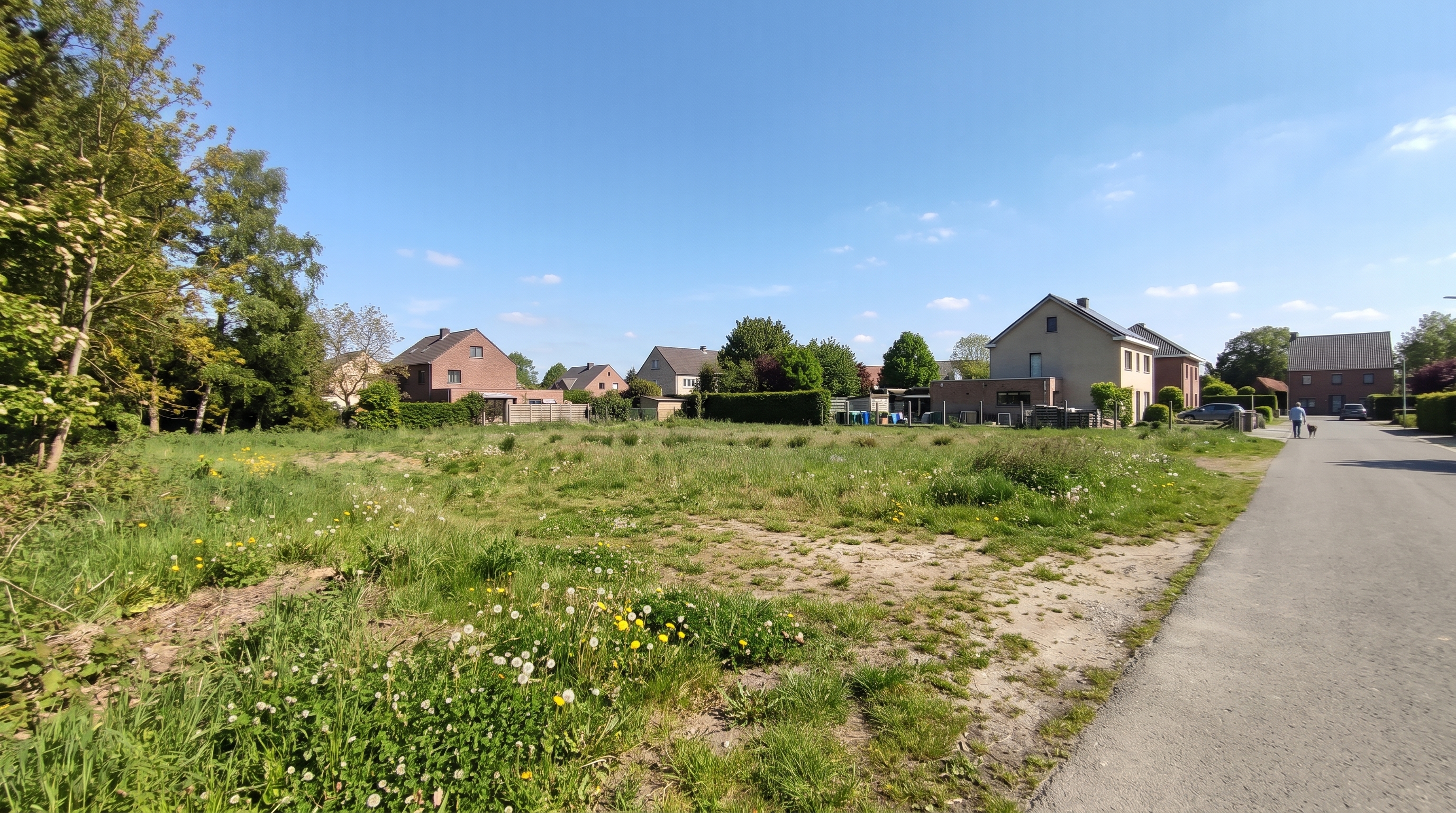
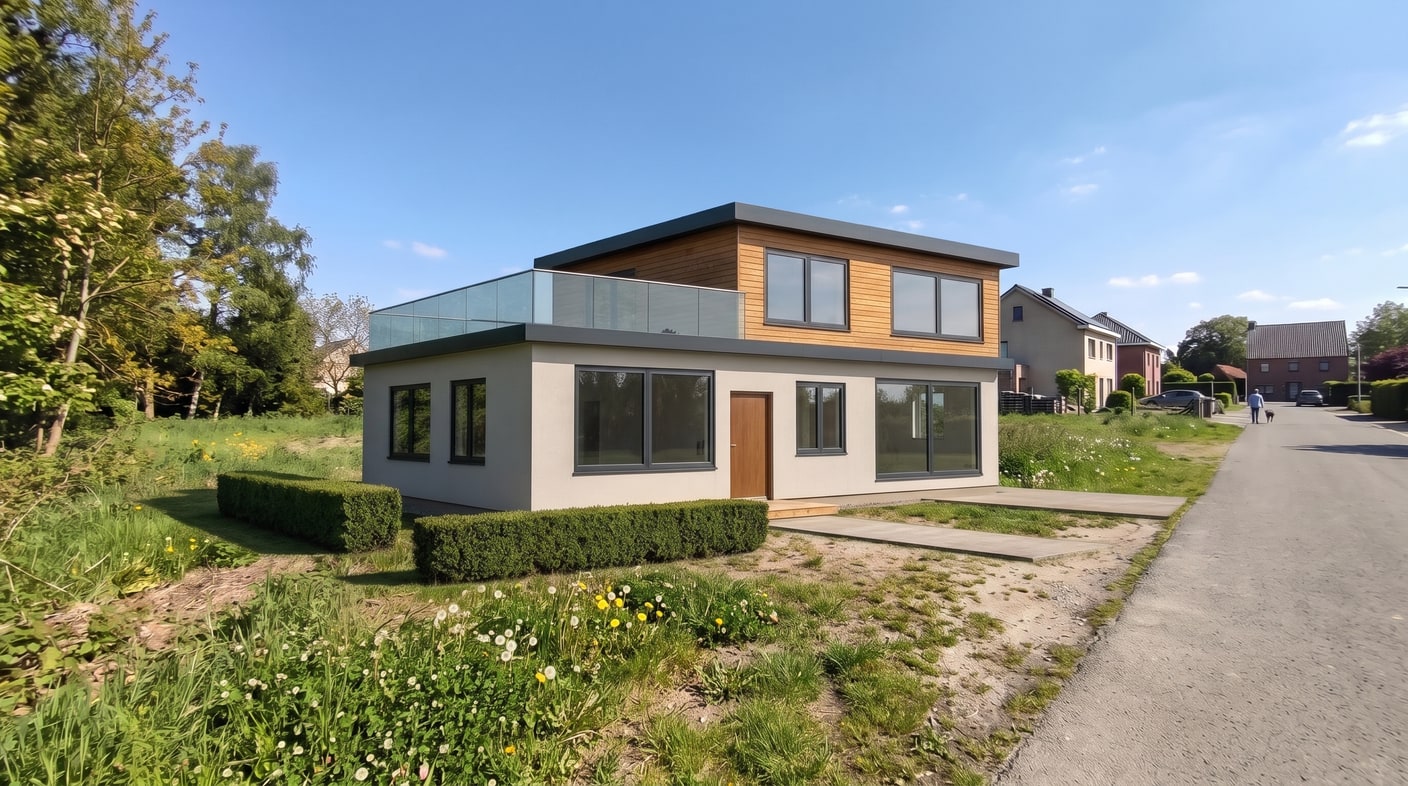
Demo example: the “Before” image was created with AI for this site; it is not a customer photo.
Features
Upload a photo of your land and a view of your building, paint where it goes and see it standing there. Then add a lawn, trees, a path or a fence. From 3 credits.
How Can You See a House on Your Land Before Building?
Places your building on a photo of your land, in the photo's own angle and light
Which Photos Work Best?
Adds landscaping, a fence or a wall, or any change you describe, step by step
What Can You Add Around the House?
Works with a 3D view of the building or a result from 3D → Photoreal Render
How It Works
Get professional results in three simple steps
Drop your photos here
or browse files
Upload Your Photos
Take a photo of the land from where you would stand to look at the house, with the whole spot in view, and upload it. Add the building: a view exported from your 3D model, or a result from 3D → Photoreal Render.
AI Processing
Paint the ground where the building should stand. It is placed there in the photo's angle and light for 3 credits, or 5 at 4K on Pro and Business. If the size or spot is not right, paint again and rerun.
Download Results
Add what goes around it, one step at a time, for 2 credits each: a lawn, flower beds, trees, a stone path, gravel or garden lights; a metal, wood, stone, hedge or glass fence; or any change you describe.
Why Choose Roomagen
Place the Building
Places your building on a photo of your land, in the photo's own angle and light
Lawn, Trees and Paths
Adds landscaping, a fence or a wall, or any change you describe, step by step
Fences and Walls
Works with a 3D view of the building or a result from 3D → Photoreal Render
Who Is It For?
Future Homeowners
See the house you are planning on your own plot, from the spot where you will stand, before you decide on the design.
Builders & Developers
Show buyers a plot with the planned home on it, then add the garden and fence they would get.
Architects
Put the design into a photo of the real site for a client meeting, without building a photomontage by hand.
Common Use Cases
Choosing a Design for Your Plot
Place two or three designs on the same photo of your land and compare them side by side in your history before you commit to one.
Selling a Plot With a Plan
Show buyers what the plot can become: the planned house in place, with a lawn, trees and a fence. Label the images as visualizations.
Planning the Garden
After the house is in place, paint areas for a lawn, flower beds, trees, a stone path, gravel or garden lights and see them in the photo.
Client Meetings on Site
Take a photo of the site, place the design from the architect's render, and talk about the result with everyone looking at the same picture.
An architect's photomontage matches the model to a site photo by hand and is charged per image. Doing it yourself in a photo editor means cutting out the building and matching perspective, scale and light by eye. Roomagen places the building in the photo's angle and light for 3 credits and adds landscaping, fences and free edits for 2 credits each. It is a picture for deciding and presenting, not a survey or a permit drawing.
| Roomagen | Architect's photomontage | Photo editing yourself | |
|---|---|---|---|
| Cost | 3 credits to place the building | A fee per image | Software and your time |
| What you need | A photo of the land and an image of the building | Site photos, the model and a brief | Editing skills and matching perspective by hand |
| Light and angle | Matched to your photo | Matched by hand | Matched by hand |
| Garden and fence | Add them step by step, 2 credits each | Part of the brief | Draw them yourself |
Technical Specifications
- Inputs
- A photo of the land and an image of the building (a 3D view or a render)
- Supported formats
- JPEG, PNG, WebP
- Max file size
- 50 MB
- Steps
- Building, landscaping, fence or wall, free edit
- Output resolution
- 2K; 4K on Pro & Business
- Credit cost
- Placing the building 3 credits (5 at 4K); each next step 2 credits
Pricing
| Plan | Price | Credits/mo | Per Image | Resolution |
|---|---|---|---|---|
| Free | $0 | 6 (one-time) | Free | — |
| Starter | $12/mo | 60 | $0.40 | 2K |
| Pro | $29/mo | 200 | $0.29 | 2K or 4K |
| Business | $79/mo | 700 | $0.23 | 2K or 4K |
Per-image cost = 2 credits. Annual plans reduce cost by ~17%. Credit packages: 60/$19, 180/$45, 360/$79.
Frequently Asked Questions
Everything you need to know about Roomagen
Upload a photo of the land and an image of the building, then paint the ground where it should stand. Roomagen places the building in the photo's angle and light, and you can add a garden and a fence afterwards.
A sharp daylight photo taken from where you would stand to look at the house, with the whole spot in view and nothing blocking it. Wide shots that also show the neighbours and the street give the result its context.
Use a view exported from your 3D model, or a result from 3D → Photoreal Render. An exterior view from roughly the same height and direction as your land photo blends in best.
Yes. The building keeps its shape, windows and roof; it is fitted into the painted area in the photo's perspective. If it looks too big or too small, paint a larger or smaller area and run it again.
Placing the building costs 3 credits, or 5 at 4K on the Pro and Business plans. Landscaping, a fence or a free edit cost 2 credits each, and new accounts start with 6 free credits.
Yes. Paint an area and choose what goes there: a lawn, flower beds, trees, a stone path, gravel or garden lights, as many as you like, or write a short note. Each landscaping step costs 2 credits.
Yes. Draw the line, then choose metal, wood, a stone wall, a hedge or glass, a colour and a height of 1, 1.5 or 2 metres. You can also upload a photo of a fence you like instead.
No. It is a picture for deciding and presenting, not a survey, a site plan or a permit drawing. Sizes, distances and heights are not measured, so check those with your architect and the planning rules.
This tool places a whole building on an empty plot. To add a garage, a shed or an ADU next to an existing house in a photo, use the Home Addition Visualizer instead.
Yes. Place each design on the same land photo; results are saved in your history, so you can compare them side by side and continue from the one you prefer.
Explore Related Tools
Discover more AI-powered tools to enhance your visual content
AI Architectural Rendering — Turn a 3D Model View into a Real-Looking Photo
Turn a view of your SketchUp, Revit, Archicad, Rhino or Blender model into a photoreal image with AI. Choose the light, weather and people; 2 credits per image.
Learn moreFloor Plan to 3D Render — From a Sketch to a Photoreal Image in One Studio
Turn a sketch into a floor plan, the plan into a 3D view and the 3D view into a photoreal render, then place it on your land. Steps 2 credits; land placement 3.
Learn moreVirtual Landscaping Design — 12 Garden Styles Added to Your Yard Photo
Add plants, trees, gardens and outdoor features to a photo of any yard or property in 12 landscaping styles, without breaking ground. 2 credits per image.
Learn moreFence Visualizer — Try 8 Fence and Privacy Wall Styles on Your Photo
Try 8 fence and wall styles on your property photo, from privacy, vinyl and wrought iron fences to stone, stucco and brick walls; add new or replace old.
Learn moreHome Addition Visualizer — Add an ADU, Garage, Shed or Carport to a Photo
Add an ADU, garage, carport, shed or greenhouse — or a fence, wall or driveway — to a property photo in a style that matches the home, usually in under a minute.
Learn more