
Blender AI Render — Turn a Solid Viewport Into a Photoreal Image Without a Cycles Setup
Roomagen's Blender AI render turns a Solid or Workbench view of your architecture scene into a photoreal image with the same camera, without a Cycles setup or materials; Renew can add them in a style, for 2 credits.
Blender can produce photoreal images, but getting there with Cycles means assigning materials to every surface, lighting the scene and tuning render settings. For an architecture or interior scene still in progress, that is a lot of work for one presentation image. With Roomagen you render the viewport in Solid shading, or with the Workbench engine, upload the image and pick the light and surroundings. Plain grey surfaces get the real material they most likely are, Renew can restyle them in one of seven styles, and each image costs 2 credits.
No credit card required. Results usually in under a minute.
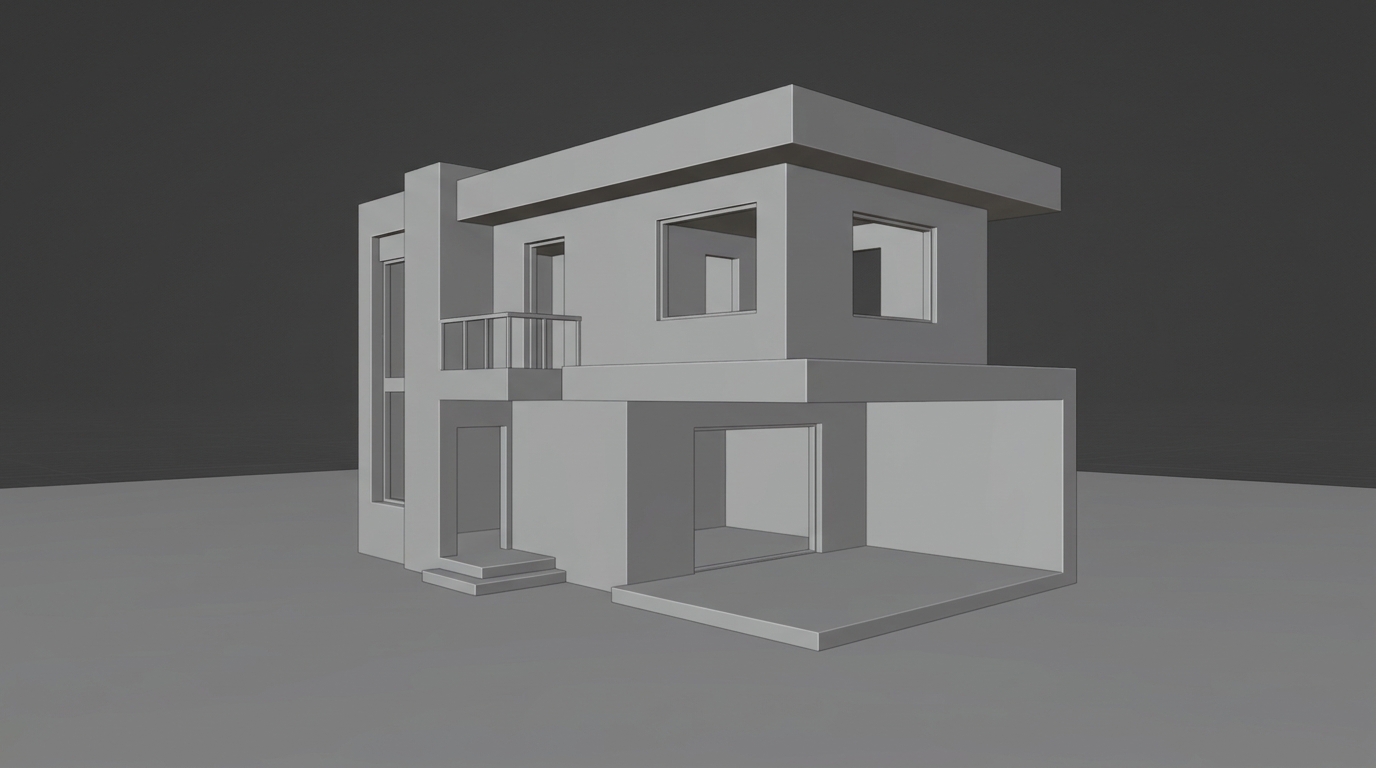
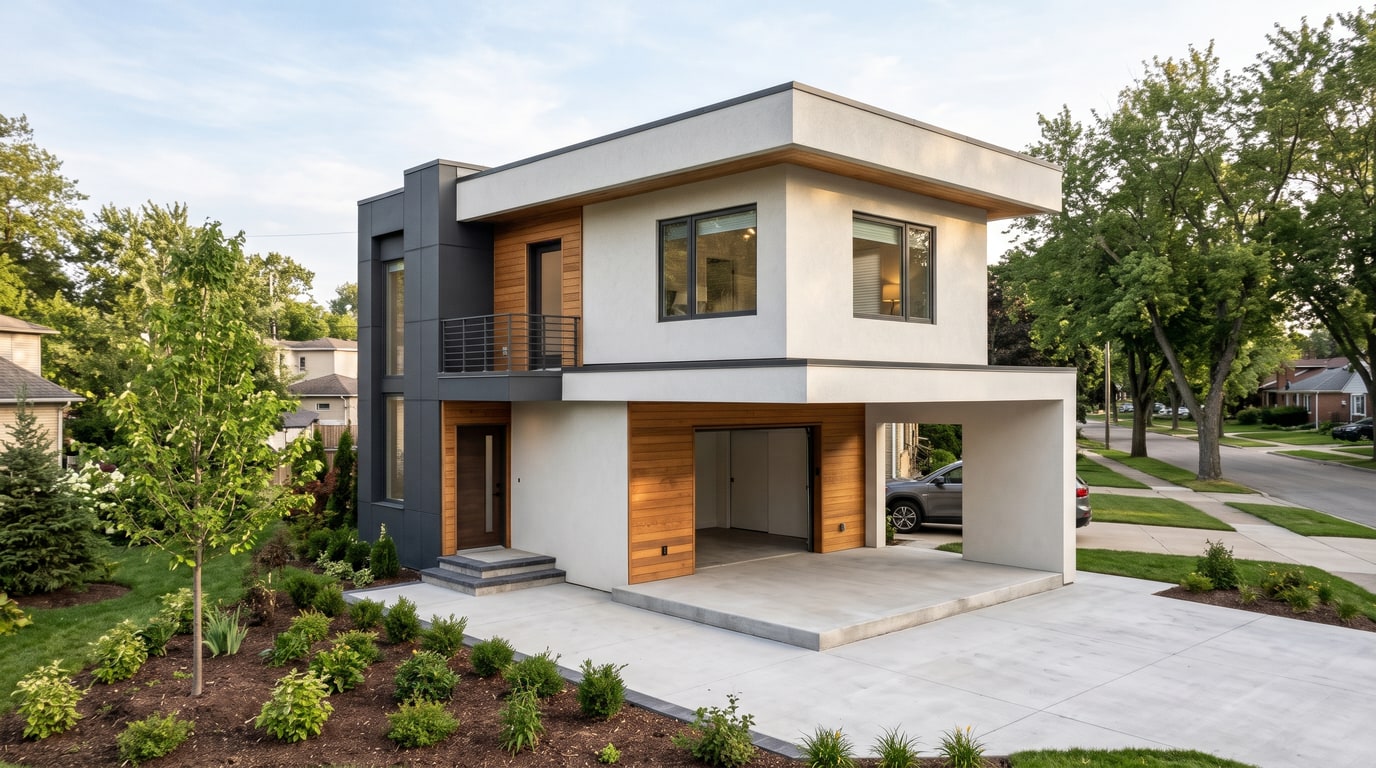
Demo example: the “Before” image was created with AI for this site; it is not a customer photo.
Features
Blender AI render in the browser: upload a Solid or Workbench view, skip Cycles, lights and materials, and get a photoreal image of the same scene. 2 credits.
How Do You Render a Blender Scene With AI?
Turns Solid or Workbench Blender views into photoreal images with the same camera
Why Skip the Cycles Setup?
No Cycles setup and no materials needed; Renew adds materials in seven styles
Where Do the Materials Come From?
Interior, exterior and from-above cutaway views; 2 credits per image in the browser
How It Works
Get professional results in three simple steps
Drop your photos here
or browse files
Upload Your Photos
Drag and drop your photos or browse to upload them. Roomagen accepts JPEG, PNG and WebP files up to 50 MB each.
AI Processing
Our advanced AI analyzes your images and applies professional enhancements automatically. Choose from virtual staging, enhancement, object removal, or day-to-dusk conversion.
Download Results
Preview your transformed images and download high-resolution results ready for listings, marketing materials, social media, and more. No watermarks on premium plans.
Why Choose Roomagen
Solid and Workbench Views
Turns Solid or Workbench Blender views into photoreal images with the same camera
Renew: Materials in Seven Styles
No Cycles setup and no materials needed; Renew adds materials in seven styles
Interiors, Exteriors and Cutaways
Interior, exterior and from-above cutaway views; 2 credits per image in the browser
Who Is It For?
Architecture Students
Turn a Blender massing or interior model into a presentation image without learning node materials and Cycles settings first.
Interior Designers Using Blender
Show a modeled room with natural light, lamps or a mix, keep the furniture as it is, or renew the materials in a style such as Japandi.
Freelance 3D Artists
Give clients a photoreal preview of a scene while it is still in progress, before the final materials and lighting are done.
Cycles and Eevee render from the materials, lights and settings you build in the Blender scene, which gives full control and takes setup time for every scene. Roomagen is a web app with nothing to install: upload a Solid or Workbench view, keep the camera and the design, choose the light and the materials, and pay 2 credits per image, with a brush for single spots.
| Roomagen | Cycles or Eevee | Viewport render alone | |
|---|---|---|---|
| Materials | Not needed; kept or added in a style | Set up by hand | Grey or flat colors |
| Lighting | Pick daytime, golden hour, evening or night | Built in the scene | Viewport lighting |
| Skill required | None | Shading and lighting know-how | None |
| Changing one spot | Brush, 2 credits | Edit the scene and render again | Edit the scene |
| Cost | 2 credits per image ($0.23–$0.40) | Free software, run on your computer | Free |
Frequently Asked Questions
Everything you need to know about Roomagen
Set the camera, switch the viewport to Solid shading and use View → Viewport Render Image, or render with the Workbench engine, then save the image. Upload it to Roomagen, choose the light and surroundings, and create the photoreal version.
No. Plain grey or white surfaces get the real material they most likely are, such as plaster, glass, paving or grass, and the light comes from your choice of daytime, golden hour, evening or night. Renew restyles the materials if you want a specific look.
Cycles gives full control but needs materials, lighting and render settings for every scene. Roomagen suits the moments when you need a presentation image of a scene in progress, from the camera you already set, for 2 credits.
Yes. Textured views and plain renders work as well; choose Keep to hold on to your materials, or Renew to replace them in one of seven styles. The camera and the layout stay the same either way.
Modern, Minimalist, Scandinavian, Japandi, Industrial, Classic and Mediterranean. Renew changes the materials to the style you pick, while walls, windows, furniture and the camera stay where you modeled them.
Yes. Choose Interior, set the light source to natural, lamps or mixed, and keep the furniture or let an empty room be furnished. For a cutaway seen from above, choose the From above space.
Yes. Choose Exterior, then the weather, ground, people, vehicles, surroundings and greenery. From an exterior result you can also choose Place on my site to put the building on a photo of real land, for 3 credits.
Blender renders in Roomagen cost 2 credits per image, at 2K or 4K; 4K comes with the Pro and Business plans. Monthly plans put that at $0.23–$0.40 per image, and new accounts get 6 free credits.
Yes. Paint the detail with the brush, write the change, and only that area is redone for 2 credits. The eraser removes a painted object for 2 credits, and earlier versions are saved in your history.
No. The result is a visualization for presentations and decisions, and sizes in it are not measured. Keep your Blender scene and technical drawings as the reference for anything that must be exact.
Explore Related Tools
Discover more AI-powered tools to enhance your visual content
AI Architectural Rendering — Turn a 3D Model View into a Real-Looking Photo
Turn a view of your SketchUp, Revit, Archicad, Rhino or Blender model into a photoreal image with AI. Choose the light, weather and people; 2 credits per image.
Learn moreRhino Render AI — Turn a Rhino Viewport Into a Photoreal Image
Rhino AI rendering in the browser: capture an Arctic, Pen or Shaded viewport, upload it and get a photoreal image that keeps the form and camera. 2 credits.
Learn more3D Model to Realistic Image — Turn Clay, Massing or Shaded Views Into Photos
Turn a 3D model into a realistic image with AI: upload a clay, massing, shaded or textured view from any program and get a photo-like result. 2 credits each.
Learn moreAI Render Enhancer — Make a Computer-Looking Render Realistic
Make a render realistic with AI: upload a render with flat light or plain materials and get a real-looking photo from the same camera. 2 credits each.
Learn more